How to Track Sleep with Apple Watch
Apple Watch is one of the most accurate consumer sleep trackers you can wear. It estimates your REM, core and deep sleep, overnight heart rate, breathing rate and even blood oxygen. Here's how to set it up correctly, and how to turn the raw data into something you can actually act on.
Step 1: Turn on sleep tracking
- On your iPhone, open the Health app → Browse → Sleep, and set up a sleep schedule (bedtime and wake time).
- Make sure Sleep Focus turns on at bedtime; this is what tells the watch you're sleeping.
- In the Watch app, check that "Track Sleep with Apple Watch" is enabled.
Step 2: Wear it right
- Charge to at least 30% before bed. A quick top-up while you brush your teeth is usually enough for the night.
- Wear the watch snug but comfortable: a loose band hurts heart-rate accuracy.
- Sleep at least 1 hour with it on; sleep-stage estimates need a few hours to be meaningful.
Any Apple Watch from Series 4 onward (including SE) can track sleep stages on a modern watchOS. If you have another tracker or a smart bed that writes to Apple Health, that works too; you don't strictly need a watch. Nights tracked without a Watch still get a Lunomia Score, built from the parts Lunomia can read.
Step 3: Actually understand the results
This is where most people get stuck. The Health app stores excellent data but presents it as charts buried three taps deep, with little interpretation. You can see that you got 42 minutes of deep sleep, but is that good? Is your sleep getting better or worse this month?
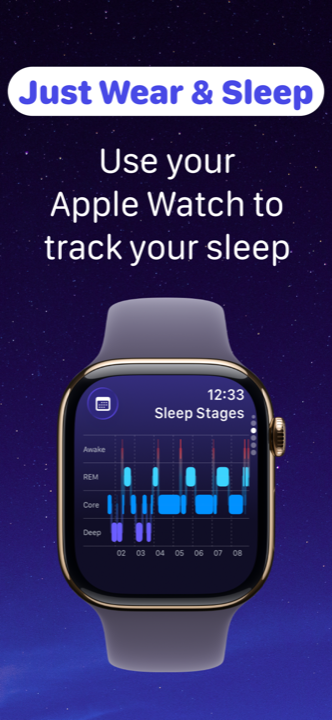
That's the gap Lunomia fills. It reads your Apple Watch sleep data from Apple Health and turns every night into a clear morning report:
- One-glance summary: time asleep vs time in bed, and your sleep efficiency.
- Sleep stage chart: your night's journey through awake, REM, core and deep sleep (what these mean).
- Vitals in context: overnight heart rate, breathing and blood oxygen next to your stages.
- Lunomia Score: one number from 0 to 100 for the night, built from the parts your Watch recorded (how the score works).
- Your sleep animal: a fun, memorable summary of the night's pattern (what's a sleep animal?).
- Trends: duration, efficiency and bedtime consistency across weeks and months.
There's also a Lunomia app for Apple Watch, so you can check your sleep stages right on your wrist without reaching for your phone. The whole idea: just wear & sleep, and Lunomia handles the analysis automatically, privately, on your device.
Battery tip: Charge your watch during your morning routine (shower + coffee ≈ 30–45 minutes) instead of overnight. You'll go to bed with plenty of charge every night.
Common Apple Watch sleep tracking problems
- No sleep stages recorded? Check the watch was above 30% charge, worn snugly, and that Sleep Focus was active.
- Short nights missing? The watch needs a minimum stretch of sleep to classify stages; naps often show as duration only.
- Numbers differ between apps? Different apps read the same Apple Health data but interpret in-bed vs asleep differently; efficiency is the number to compare.
Make your Apple Watch sleep data make sense
Lunomia turns Apple Health data into clear, friendly sleep analysis. Free download.